 Image Maps
 NavPilot
 Advanced Tabs
 HTMLPoint
 Power Popups
 Alerts Fusion
 Short URL
 QR Code Drop
 FollowPoint
 DirectoryPoint
 HRPoint
 OnboardPoint
 GovernPoint
 ExposurePoint
 UsagePoint
 InvitePoint
 VerifyPoint
 AgentPoint
 ExpiryPoint
 Handover Pro
 EquipPoint
 TidyPoint
 DisposalPoint
Why offboarding goes wrong in Microsoft 365
The account is easy to switch off. The work is not. When someone leaves, the problems usually show up weeks later:
- A SharePoint site or team whose only owner has gone.
- Files in a personal OneDrive that the team relied on.
- Anyone links and guest access that the leaver set up and nobody else knew about.
- Knowledge that was never written down, because the handover was squeezed into the last few days.
What happens to a leaver's OneDrive
By default, when a user is deleted from Microsoft Entra ID, Microsoft keeps their OneDrive for 30 days, and administrators can set this anywhere from 30 to 3,650 days in the SharePoint admin center. The user's manager is given access to the OneDrive automatically and emailed, or a secondary owner if no manager is set, and a second email goes out seven days before the retention period ends.
Retention policies and labels take precedence, so content under a policy can be kept longer. The practical lesson: move what the team needs into a shared site before the account is deleted, rather than relying on the manager to rescue it later.
A leaver checklist for SharePoint and Microsoft 365
Give every task an owner and a date counted back from the leaving date.
As soon as you know
- Manager agree the leaving date and who takes over each piece of work
- HR start the leaver record and book the exit conversation
- IT list the sites, teams, groups and apps the person owns
During the notice period
- Leaver move shared work out of OneDrive into the team's SharePoint site
- Leaver write down what only they know, with links to the files
- IT add a second owner to every site, team and group they own
- IT review the sharing links and guests the leaver created
- Manager hand over clients, suppliers and recurring meetings
On the last day
- IT block sign-in and remove sign-in methods
- IT convert or forward the mailbox, if HR has approved it
- Facilities collect the laptop, phone, pass and keys
- HR confirm final pay, holiday owed and the leaving date with payroll
After they leave
- IT remove licences once the content has moved
- Manager check nothing important is left in OneDrive before retention ends
- HR keep a record of the handover and who signed it off
Do it in the right order
The safest rule for access is add before you remove. Give the people taking over access to each site, library and file first, check they can open it, then remove the leaver. Removing access first is how teams lose work they cannot get back without an administrator.
The second rule is to start early. A handover written in the last two days captures what the leaver remembers under pressure, not what the team will need.
How Handover Pro and OnboardPoint help
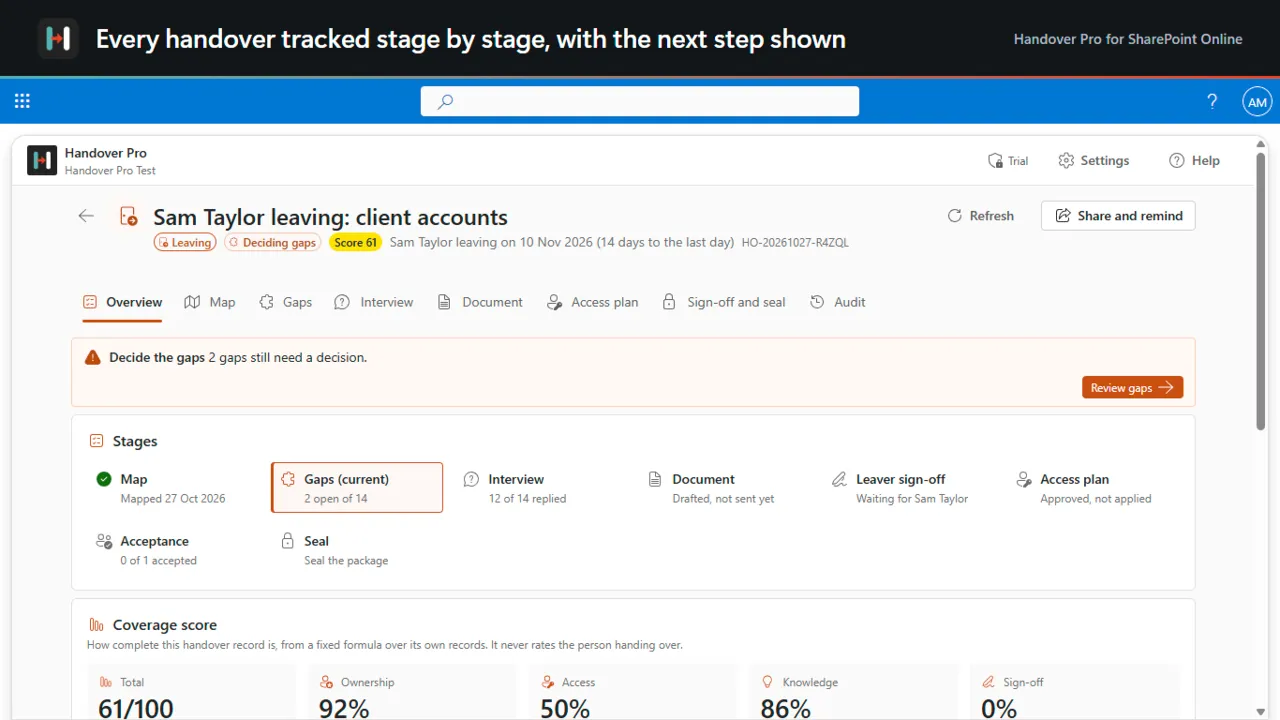
Handover Pro runs the handover inside SharePoint. It maps the sites, libraries, lists and permissions of the person handing over, finds what would be lost (files only they know about, items with no other owner, sharing links and check-outs), interviews them in their own words and writes a handover document in which every statement cites a file, an item or an answer.
Access moves through a plan someone approves: the people taking over are added before the leaver is removed, and every change can be rolled back until the pack is sealed with a PDF certificate and a tamper-evident audit trail. It runs in your own tenant with no servers of ours. Buy one Exit Pack for £249 per handover, or a plan from £1,499 a year, with a 14-day free trial.
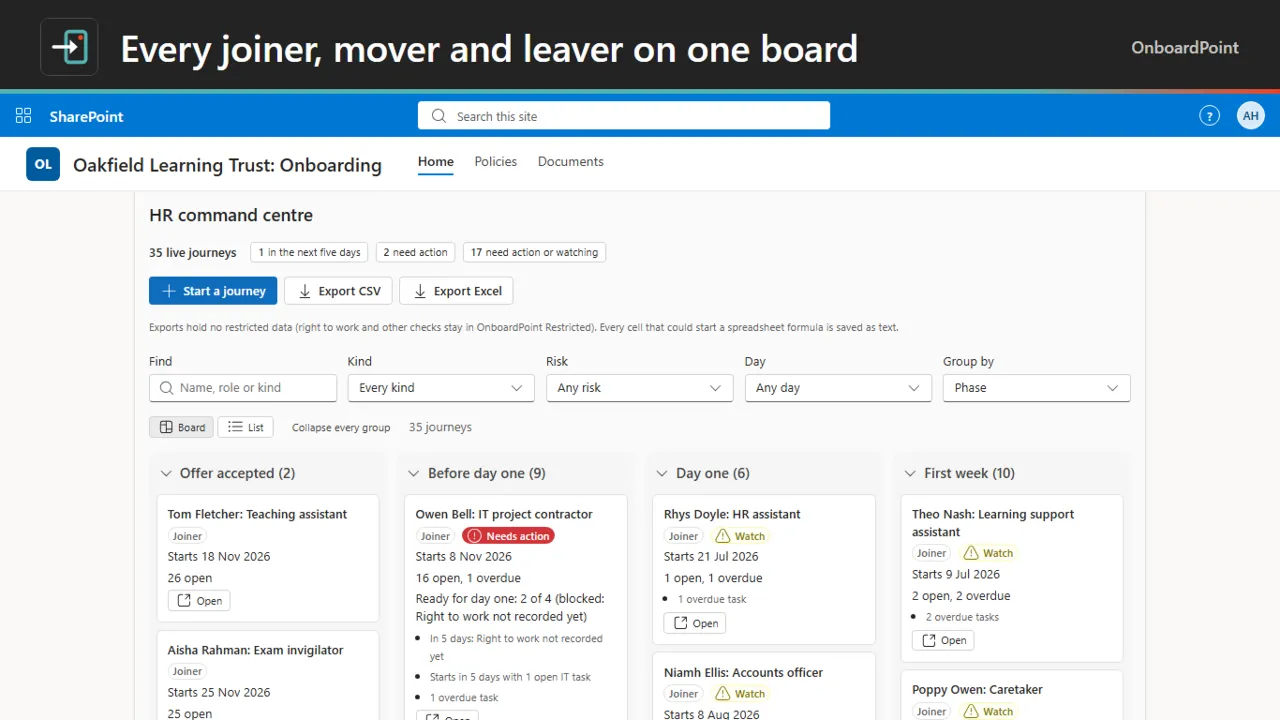
For the wider leaver process, OnboardPoint runs leavers on the same board as joiners and movers, with last-day gates for the checks that must be done in time.
Sources
Checked on 26 November 2026. Rules and Microsoft 365 features change, so check the source before you rely on a detail.