 Image Maps
 NavPilot
 Advanced Tabs
 HTMLPoint
 Power Popups
 Alerts Fusion
 Short URL
 QR Code Drop
 FollowPoint
 DirectoryPoint
 HRPoint
 OnboardPoint
 GovernPoint
 ExposurePoint
 UsagePoint
 InvitePoint
 VerifyPoint
 AgentPoint
 ExpiryPoint
 Handover Pro
 EquipPoint
 TidyPoint
 DisposalPoint
What belongs on an HR portal
An HR portal answers the questions staff ask HR every week, so they can find the answer without asking:
- Policies and the handbook. One current version of each policy, with an owner and a review date.
- Time off. How to book holiday, report sickness and ask for family leave, and who approves.
- Pay and benefits. Pay dates, pension, benefits and expenses, and who to ask about them.
- Joining and leaving. What new starters need in their first weeks, and what happens when someone leaves.
- Wellbeing and support. Where to get help, inside and outside the organisation.
- News, events and contacts. HR announcements, training dates and the people in HR to talk to.
What does not belong on it is anything about one person: contracts, pay, sickness reasons, right to work copies or disciplinary notes. A portal is built for everyone to read.
Start with the Human Resources site template
SharePoint includes a Human Resources site template: a communication site designed as a central hub for information on benefits, career, compensation and organisation policies. It comes with pages filled with sample content to edit:
- Home. News and announcements, events, key information and your HR team.
- Compensation. Payroll and rewards, with answers to common questions on holidays, payroll and reporting time off.
- Career. A welcome for new employees, with the onboarding information, resources and contacts they need.
- Benefits. The benefits and help your organisation offers, as links and answers to common questions.
- Culture. Your values, perspectives and inclusion work.
You need site owner permissions to add the template. If you apply it to a site that already has content, your content is not merged: it is kept as a duplicate page in Site contents. Replace the sample Hero, Quick Links, Events, People and Call to action web parts with your own content before you share the site.
How to set up a SharePoint HR portal, step by step
- Create the site. A communication site, from the Human Resources template or blank. Communication sites are made to share information with a broad audience; keep HR's own working files in a team site.
- Plan the pages from the questions. List the questions HR answers most often and make sure each one has a page or a clear answer.
- Give every policy an owner and a review date. Keep policies in one library with version history, and link to them rather than copying their text onto pages.
- Target content where it differs. Turn on audience targeting so staff in each nation or office see their own bank holidays, benefits or contacts.
- Make it easy to ask. Add a form or a request list for questions the portal does not answer, and say how quickly HR replies.
- Bring it into Teams. Link it from the SharePoint app in Teams, or add it as a channel tab, so staff find it where they work.
- Review it every quarter. Check which pages people use and remove anything out of date.
Show the right HR content to each group
HR content often differs by nation, site or role: bank holidays, benefits, contacts and some policies. Audience targeting in SharePoint shows navigation links, pages and web parts such as News, Quick Links, Highlighted content and Events to the groups you choose.
- The site owner turns it on: once for the site navigation, and for each library where you want to target pages or files.
- Audiences are Microsoft 365 groups or security groups, and a navigation link can target up to 10 of them.
- Changes take effect when the page is published or republished, and a group you have just created or changed can take a while to apply.
Audience targeting changes what people see, not what they can open. Anything that must stay private needs permissions, not targeting.
A portal is not an HR system
The portal tells people how HR works. The records behind it need rules and permissions that a portal page does not have.
| HR portal on a SharePoint site | HR records in HRPoint | |
|---|---|---|
| What it holds | Policies, news, forms and contacts | One dated record per person, with leave, sickness and right to work |
| Holiday | How to book it | Worked out in days or hours, with Explain my balance |
| Sickness | How to report it | Fit notes, return to work and day-one SSP, and a manager sees the category, never a diagnosis |
| Policies | The current version to read | Mandatory reads with reminders, and an acknowledgement for each person and version |
| Approvals | Links to forms | One approvals inbox, with a decision record for every approval |
Bring the HR portal into Microsoft Teams
The SharePoint app in Teams, formerly Viva Connections, brings your SharePoint home site into Teams with news, a dashboard of cards and a list of resources, and its content can be targeted to different audiences. Add the HR portal to its resources, and news posted on the HR site can appear in its news. For one team, a site owner can also add an HR page as a tab in a channel.
Staff then find policies, HR news and the way to ask a question in the same app they use for chat and meetings.
Where HRPoint fits behind the portal
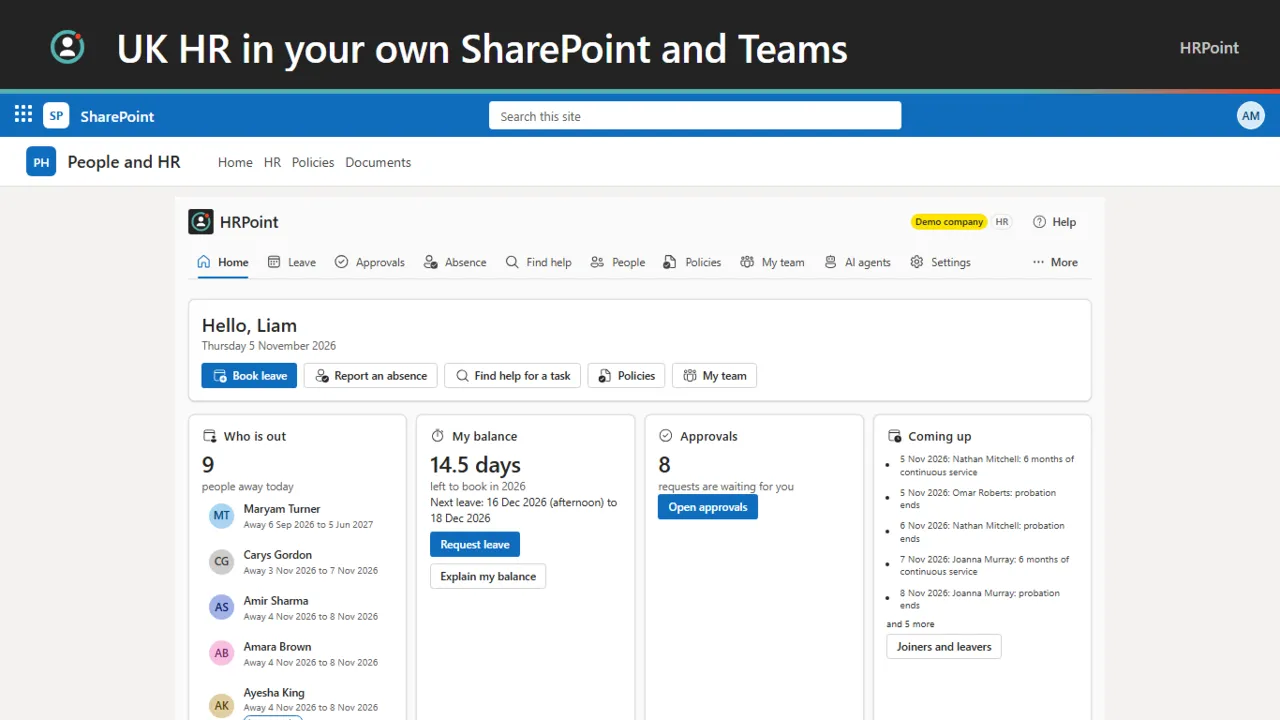
HRPoint is UK HR for Microsoft 365 that runs on SharePoint in your own tenant and in Microsoft Teams, so the portal and the HR records sit side by side. It keeps one dated record per person, works out holiday in days or hours with an "Explain my balance" view, records sickness with fit notes and day-one Statutory Sick Pay, and keeps right to work records with follow-ups before time-limited permission ends.
Its policy library has versions and audiences, mandatory reads with reminders, and an acknowledgement kept for each person and version, so you know who has read what. Add DirectoryPoint as the portal's staff directory. HRPoint needs no extra permissions to start, and every feature is in every plan, from £395 a year with a 14-day free trial.
Sources
Checked on 26 November 2026. Rules and Microsoft 365 features change, so check the source before you rely on a detail.
- Microsoft Support: Use the Human Resources communication site template
- Microsoft Support: Use the Standard communication, Showcase and Blank communication site templates
- Microsoft Support: Target navigation, news, files, links and web parts to specific audiences
- Microsoft Learn: Overview of the SharePoint app in Teams
- Microsoft Support: Add a SharePoint page, list, or document library as a tab in Teams