
 Image Maps
 NavPilot
 Advanced Tabs
 HTMLPoint
 Power Popups
 Alerts Fusion
 Short URL
 QR Code Drop
 FollowPoint
 DirectoryPoint
 HRPoint
 OnboardPoint
 GovernPoint
 ExposurePoint
 UsagePoint
 InvitePoint
 VerifyPoint
 AgentPoint
 ExpiryPoint
 Handover Pro
 EquipPoint
 TidyPoint
 DisposalPoint
Add the Organization chart web part
- Edit the page. On a modern SharePoint page, select Edit at the top right.
- Add the web part. Open the toolbox, select See all web parts, then choose Organization chart.
- Choose the person. Enter a name or email address in the Name or email address box and pick the person from the results. The chart is built around them.
- Set the levels. Select Edit properties and enter how many reporting levels above the person to show.
- Publish. Readers can hover over or select a name to see more about that person and how to contact them.
Two limits to know: each web part is built around one person you choose, so a page for each department needs its own chart, and external users cannot be added.
Other ways to show an org chart in Microsoft 365
- Profile cards. Select anyone's name or picture in Outlook, Teams and elsewhere in Microsoft 365 and, depending on your organisation, their profile card includes their place in the org chart.
- The Organization tab in Teams. Shows who a person reports to and who reports to them, where your Teams admin has turned it on.
- Org Explorer. A Microsoft app in Outlook, Teams and Microsoft 365 for organisations with an Enterprise or Education licence. It shows the manager chain above a person, their peers, the people reporting to them and the people they work with.
- A drawn chart. A diagram made in PowerPoint or Visio and added to a page as an image or file. It can show anything you like, but it is out of date the first time someone joins, moves or leaves.
- A directory app. Shows the org chart inside a searchable staff directory, so people go from a search result straight to someone's place in the organisation.
For the wider staff directory, see SharePoint employee directory, and for Teams, Microsoft Teams employee directory.
Every org chart runs on the manager field
The org charts in Microsoft 365 do not hold reporting lines of their own. They read each person's manager from their profile in Microsoft Entra ID, and if your organisation has no manager data there, Org Explorer cannot show an org chart at all. So the chart is only as good as that one field.
- Where to change it. In the Microsoft Entra admin center, a User Administrator can set a person's job title, department and manager under their job information.
- Synced accounts. If accounts come from Windows Server Active Directory, change the manager there. The change shows after the next sync.
- From HR. HR-driven provisioning can sync data from your HR system to Microsoft Entra ID, so a change of manager recorded by HR reaches the org chart without a second edit.
Before you publish an org chart, find the people with no manager. Apart from the person at the top, each one is a gap in the chart.
The options compared
| Organization chart web part | Profile cards and Org Explorer | A drawn chart | A directory app | |
|---|---|---|---|---|
| Stays up to date | Yes, from profiles | Yes, from profiles | No | Yes, from profiles |
| Starts from | One person you choose | Any person you look up | Whatever you draw | Any person you find |
| Find a person | No, it is fixed on one person | Yes, by name | No | Yes |
| Where people see it | A SharePoint page | Outlook, Teams and Microsoft 365 | Where you put it | Usually SharePoint and Teams |
| Cost | Included | Included, Org Explorer with an Enterprise or Education licence | Included | A licence |
How DirectoryPoint shows the org chart
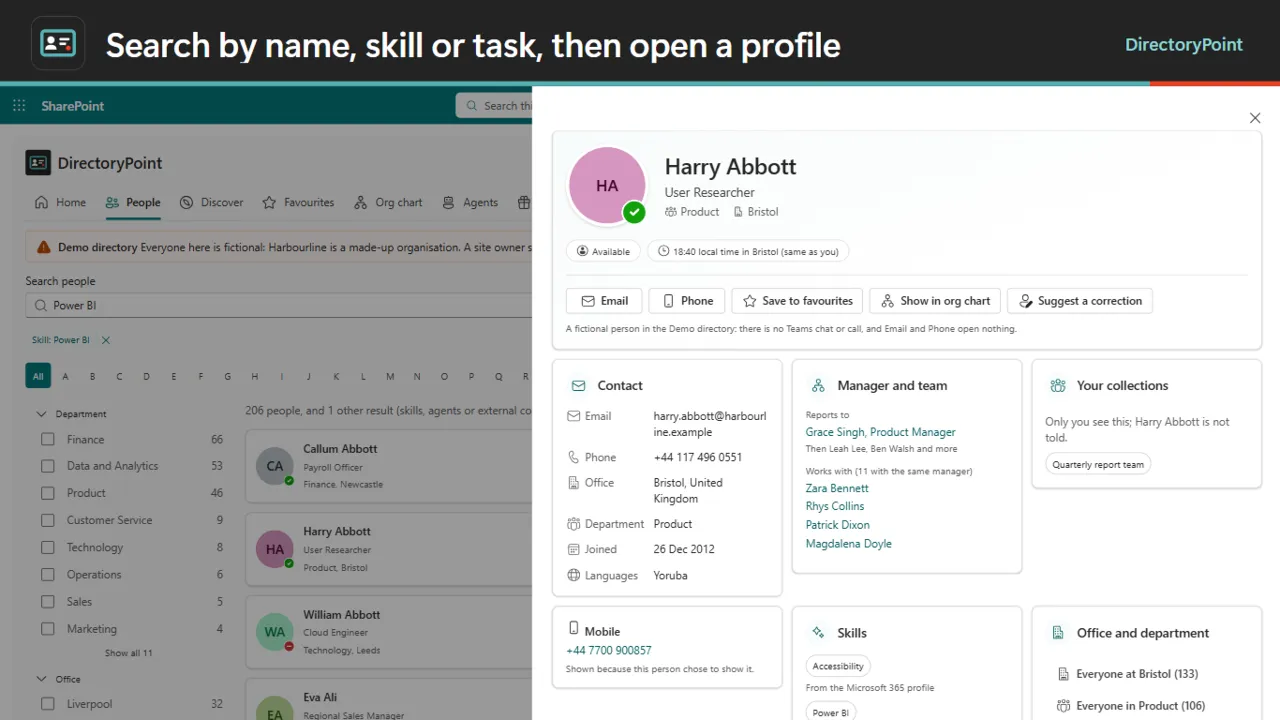
DirectoryPoint puts the org chart inside an employee directory for SharePoint and Microsoft Teams. Search finds a person by name, skill, job title, department, office or language, even with a typo or a nickname, and their profile brings Teams chat, call and email together with their skills and an org chart that shows every direct report, not only the first 20.
It never changes your directory data itself. Site owners see who is missing a photo, a manager or a job title, and corrections go to IT with every decision audited, so the gaps in the chart get fixed where the data lives. It works with no Microsoft Graph permission to start and starts at £499 a year with a 14-day free trial.
Sources
Checked on 26 November 2026. Rules and Microsoft 365 features change, so check the source before you rely on a detail.